Showing posts with label Gmail. Show all posts

Wednesday, June 18, 2008

Gmail introduces gmail lab

Gmail has introduced something called as gmail lab. Most new Google products are first released at Google labs(labs.google.com). these are in their beta version. once it fells it's working fine it's either launched or incorporated into one of theirexisting products.

Gmail to has launched something similar expect this is only concerned to Gmail. This means that their programmer can write any feature and trow it up for public. you can try them out and give your suggestions. if they feel it's a hit it may be launched for everyone.

The idea behind Labs is that any engineer can go to lunch, come up with a cool idea, code it up, and ship it as a Labs feature. To tens of millions of users. No design reviews, no product analysis, and to be honest, not that much testing

All this will actually be in beta so it means they may crash anytime or cause any serious problem. Currently it has 13 offerings and soon will have a lot more.

To try them out

  • Just go to Gmail. 
  • Select settings(top right)
  • Go to labs tab
  • Now enable the features you wnat

It has features like snake game , more star icons , message bookmarks/quick links

Friday, January 11, 2008

Send Free SMS from mail

Several mails allows forwarding. This ability to forward messages helps you to read your message in your celluar phone in SMS format. Gmail slices the message into SMS-friendly chunks and forwards it to your cell.

Here are directions for various carriers on Gmail's help section. Basically, you just set up a filter to forward to your mobile email address, using the appropriate domain:

AUSTRALIA
T-Mobile/Optus Zoo 0n@optusmobile.com. au

AUSTRIA
T-Mobile 43676n@sms.t-mobile. at

CANADA
Aliant n@wirefree.informe. ca
Bell Mobility n@txt.bellmobility. ca
Fido n@fido. ca
MTS Mobility n@text.mtsmobility. com
Rogers Wireless n@pcs.rogers. com
Sasktel Mobility n@pcs.sasktelmobility. com
Telus n@msg.telus. com
Virgin Mobile n@vmobile. ca

GERMANY
T-Mobile 0n@t-d1-sms. de
Vodafone 0n@vodafone-sms. de
O2 0n@o2online. de
E-Plus 0n@smsmail. eplus.de

ICELAND
OgVodafone n@sms. is
Siminn n@box. is

INDIA
Chennai RPG Cel 9841n@rpgmail.net lular
Delhi Hutch 9811n@delhi.hutch. co.in
Gujarat Celforce/Fascel 9825n@celforce.com

Airtel
919849n@airtelap.com Andhra Pradesh AirTel
919840n@airtelchennai.com Chennai Skycell / Airtel
919810n@airtelmail.com Delhi Airtel
919898n@airtelmail.com Gujarat Airtel
919890n@airtelmail.com Goa Airtel
919896n@airtelmail.com Haryana Airtel
919816n@airtelmail.com Himachal Pradesh Airtel
919845n@airtelkk.com Karnataka Airtel
919895n@airtelkerala.com Kerala Airtel
919831n@airtelkol.com or Kolkata Airtel
919893n@airtelmail.com Madhya Pradesh Airtel
919890n@airtelmail.com Maharashtra Airtel
919892n@airtelmail.com Mumbai Airtel
919815n@airtelmail.com Punjab Airtel
919894n@airtelmail.com Tamil Nadu Airtel
9842n@airsms.com Tamil Nadu Aircel

Idea Cellular
9848n@ideacellular.net Andhra Pradesh Idea Cellular
9824n@ideacellular. net Gujarat Idea Cellular
9822n@ideacellular.net Goa Idea Cellular
9822n@ideacellular.net Maharashtra Idea Cellular

Escotel
9812n@escotelmobile.com Haryana Escotel
9837n@escotelmobile.com Uttar Pradesh West Escotel
9847n@escotelmobile. com Kerala Escotel

BPL Mobile
9846n@bplmobile.com Kerala BPL Mobile
9823n@bplmobile. com Maharashtra BPL Mobile
9821n@bplmobile. com Mumbai BPL Mobile
9843n@bplmobile.com Pondicherry BPL Mobile
9823n@bplmobile. com Goa BPL Mobile
919843n@bplmobile.com Tamil Nadu BPL Mobile


ITALY
TIM 0n@timnet.com
Vodafone 3**n@sms.vodafone.it

JAPAN
AU KDDI n@ezweb.ne.jp
NTT DoCoMo n@docomo.ne.jp
Vodafone n@xx.vodafone.ne.jp
replace xx with one of these based on your location
xx=n Chuugoku/Western
xx=d Hokkaido
xx=r Hokuriko/Central North
xx=k Kansai/West, including Osaka
xx=t Kanto/Koushin/East, including Tokyo
xx=q Kyuushu/Okinawa
xx=s Shikoku
xx=h Touhoku/Niigata/North
xx=t Toukai/Central

Willcom n@pdx.ne.jp
Willcom di n@di.pdx.ne.jp
Willcom dj n@dj.pdx.ne.jp
Willcom dk n@dk.pdx.ne.jp

NETHERLANDS
T-Mobile 31n@gin.nl
Orange 0n@sms.orange.nl

SINGAPORE
M1 n@m1.com.sg

SOUTH AFRICA
Vodacom n@voda.co.za

SPAIN
Telefonica Movistar 0n@movistar.net
Vodafone 0n@vodafone.es

SWEDEN
Tele2 0n@sms.tele2.se

UNITED KINGDOM
O2 44n@mmail.co.uk
Orange 0n@orange.net
T-Mobile 0n@t-mobile.uk.net

n is your mobile no

A very short message (800 or so characters) takes about approx 8 SMS messages to go through. You can make use of filters & disposable id via + addressing to receive only important message and not just any fwd.

If any one of you have details regarding mobile service provider's id then plzzz give it to me . This applies for all mails that allow forwarding.

Saturday, August 25, 2007

Gmail Video

Gmail was running a so called contest to submit a video on Gmail. They asked user to submit video.A selection of the submitted clips will be visible to the world on August 20th.


If you wish to create a video you can submit it at http://mail.google.com/mvideo

Let's look at some of the videos

This is the first video and it is from taiwan


Imagination goes wild


Lighting Mail


Monolisa mail


x-ray gmail


Here is the complete list

You too can submit your video before 17th(now extended till 17th Aug)

Sunday, August 19, 2007

Gmail in Netscape 7

If you want to acess your Gmail in Netscape 6 or 5 or 4 version. then read along.

To do this


  • Go to Gmail
  • Click on settings
  • Visit Forwarding and POP Tab and enable POP feature
  • Select 'Save changes'
  • Open Netscape Mail 7.x.
  • Click 'Edit.'
  • Select 'Mail & Newsgroups Account Settings...'


  • Click 'Add Account...,' and click 'OK.'
  • Choose 'Email account.'
  • Click 'Next.'
  • Enter your name and Gmail email address (username@ gmail.com)
  • Click 'Next.'
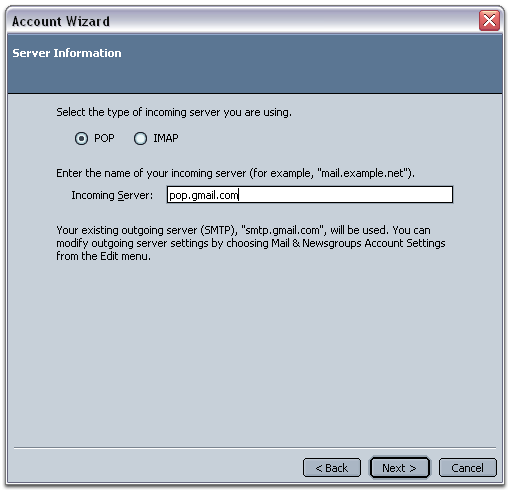
  • Select 'POP' and enter 'pop.gmail.com' in the 'Incoming Server:' field.
  • Enter 'smtp.gmail.com' in the 'Outgoing Server:' field.


  • Click 'Next.'
  • Enter your Gmail username (user @gmail.com) in the 'Incoming User Name:' field and the 'Outgoing User Name:' field.
  • Click 'Next.'
  • Enter a name for your Netscape Mail account in the 'Account Name field.'
  • Click 'Next.'

  • Finally click 'Finish.'


If you get an error message indicating that you cannot connect to pop.gmail.com. Just click 'OK,'

  1. Open the 'Edit' menu,

  2. Select 'Mail and Newsgroups Account Settings.'

  3. Check the box next to 'Use secure connection (SSL)' in the 'Server Settings' section (the port changes to 995).

  4. Click Ok

  5. Enter '587' in the 'Port:' field.

  6. Change 'Use secure connection' to 'TLS' under 'Outgoing Server (SMTP),' and click 'OK.'

Ntscape 7 setup

click on image for larger view

Importing Adress From Netscape

To import contact from Netscape/Apple mail first save the contacts in your computers then upload it to Gmail. Netscape like Mozilla do not add the column headings i.e First name Last name etc that is needed by Gmail so before you need to eit the file before you add it.

Saving Contacts

  • Go to Netscape mail
  • Select Window
  • Click on Address Book from the menu.
  • Select the Personal Address Book or any other address book in the Address Books list.
  • Select Tools and Click on Export from the menu.
  • Select Comma Separated (*.csv) Format
  • Choose a file name and save it.

TO Edit the file

  • Open the exported .CSV file in a spreadsheets program like EXCEL
  • Add the following correspondly as the top line "First Name,Last Name,Name,Email Address" and other details that is present .
Importing

  • Go to Gmail
  • Go to Contact
  • Select import contact (next to export link )
  • Now upload ".csv" file that you downloaded.


To import contacts from other Click here

To export contacts Click here

Moving contacts--Thunderbird to Gmail

To import contact from Thunderbird first save the contacts in your computers then import it to Gmail.

Saving Contacts

  • Go to thunderbird
  • Select Window
  • Click on Address Book from the menu.
  • Select the Personal Address Book or any other address book in the Address Books list.
  • Select Tools
  • Click on Export from the menu.
  • Select Comma Separated (*.csv) Format
  • Choose a file name and save it.

Mozilla do not add the column headings that is needed by Gmail .TO add it

  • Open the exported .CSV file in a spreadsheets program like EXCEL
  • Add the following correspondly as the top line "First Name,Last Name,Name,Email Address" and other details that is present .
Importing

  • Go to Gmail
  • Go to Contact
  • Select import contact (next to export link )
  • Now upload ".csv" file that you downloaded.


To import contacts from other Click here

To export contacts Click here

Expoting contacts to thunderbird

Expoting Gmail contacts to Mozilla has to be done in/through .csv format. To export contacts first save your gmail addressbook on your comp then import it to thunderbird


To export your Gmail address book:

  • Select Contacts .
  • Now click Export at the top.
  • Select "Outlook CSV (for import into Outlook clients)"
  • Click Export Contacts.
  • Save "Gmail-to-outlook.csv" file .

Now you need to import it into Thunderbird.

  • Go to Thunderbird

  • Select Tools

  • Click Import

  • Select Address Books as the imprting option.
  • Click Next

  • Select Text file (LDIF,.tab,.csv,.txt)

  • Click Next .

  • Select the "gmail-to-outlook.csv" file you just created.

  • Make sure First record contains field names is checked.

  • Use the Move Up and Move Down buttons to match Mozilla Thunderbird address book fields on the left with Gmail fields on the right.
  • Click OK.

  • Finally click Finish.


To export contacts to otherClick here

To import contactsClick here

Outlook to Gmail-impoting mails

Impoting mails from Outlook to Gmail is probably the most toughest.The reason you cannot direcly impot it. First you need to import it into thunderbird.Then make use of Gmail loader to import it to Gmail. Unless i's really important i dont advice you to do it. This method is aplicable to Microsoft's any Offline mail reader like outlook or outlook express .This works for all new versions of Outlook and any version previous that thunderbird suppors.

Imprting from Outlook to thunderbird


  • Open Thunderbird

  • Select Tools and then select Import 'Select

  • Select Mail

  • Click Next.

  • Highlight Outlook Express.

  • Click Next

  • Finally click Finish.

Now make use of Gmail Loader to import it into Gmail

  • Launch Gmail Loader.
  • Click Configure Your Email File.
  • Select find
  • Locate the Mozilla Thunderbird folder you want to import into Gmail.
  • Click Open.
  • Select "mBox (Netscape, Mozilla, Thunderbird)" under File Type in Gmail Loader.
  • Now select one of the options under message type "Goes to Sent Mail" OR "Goes to Inbox".
  • Type your complete Gmail address in the Address.
  • Finally Click Send to GMail.


download iconGmail Loader(details & download)

download iconMozilla Thunderbird

To import mails from other mails click here

Impoting mails from firefox/Thunderbird

Impoting mails from thunderbird/firefox is not so easy.You need to have tool called
Gmail Loader.

To import mail

  • Launch Gmail Loader.
  • Click Configure Your Email File.
  • Select find
  • Locate the Mozilla Thunderbird folder you want to import into Gmail.
  • Click Open.
  • Select "mBox (Netscape, Mozilla, Thunderbird)" under File Type in Gmail Loader.
  • Now select one of the options under message type "Goes to Sent Mail" OR "Goes to Inbox".
  • Type your complete Gmail address in the Address.
  • Finally Click Send to GMail.


To import mails from other mails click here

Saturday, August 18, 2007

Encripting Gmail

Most mails nowerdays send mail after encripting it. It's decripted while you receive it. This helps to keep our mail secure.But gmail doesn't follow this. Even if it does it isnt secure. but no more

Encripting Gmail

Cna you see this screen shot this is a encripted gmail. To do thid all that you need is Firefox
and this Greasemonkeyand this add-on


download iconInstall Firefox


download iconDownload greasemonkey

and finally this tool/add-on

Sending .Exe or .Zip files via Gmail

Al though Gmail is the best mail around we would have been more happy if some of its great features were not available. One such is attachment restrictions.

Gmail does not allow us to upload files that have the following extension .exe, .zip, .dll, .tar, among others..This is a great feature as it eliminates the chances of us receiving virus.But some time if get a software/ important files through Gmail we will not receive it.So what do you do?? Of course ask the guy to send it to some other mail.But no more we have a few solution .

  • Just go to pages.google.com . Log in with your Gmail/Google account.Just choose a name for your webpage. Now chuck everything and just upload your file(it has to be less than 10 mb). Now get the link of the file which is something like www.yourid.googlepages.com/filename.extention. paste this link in your mail and sens it. When the fellow clicks on the link he will get the file.

  • If you dont wish to use google pages you can even try out sites like Divshare.com(10-20 mb) , rapidshare.com or megaupload.com .If you use rapidsahare or megaupload you can upload large files but chances are that it may not exist on their server for a long time.

  • Instead of zipping it try raring it. I mean use WinRar instead of WinZip to compress it.

  • There is even a simpler way. All that you need to do change the extension. if the file is .exe change it to .exei or any fake extensions now all that the receiver has to do it download it ans change back the extension to .exe

Read mail through sms

I was gazing through this blog when i found this great feature.This trick pertains to Gmail. Gmail's ability to forward messages helps you to read your message in your cell phone in SMS format. Gmail slices the message into SMS-friendly chunks and forwards it to your cell.

Here are directions for various carriers on Gmail’s help section. Basically, you just set up a filter to forward to your mobile email address, using the appropriate domain:

Verizon: 10digitphonenumber@vtext.com
Former AT&T customers: 10digitphonenumber@mmode.com
Sprint: 10digitphonenumber@messaging.sprintpcs.com
T-Mobile: 10digitphonenumber@tmomail.net
Nextel: 10digitphonenumber@messaging.nextel.com
Cingular: 10digitphonenumber@cingularme.com
Virgin Mobile: 10digitphonenumber@vmobl.com
Alltel: 10digitphonenumber@alltelmessage.com OR 10digitphonenumber@message.alltel.com
CellularOne: 10digitphonenumber@mobile.celloneusa.com
Omnipoint: 10digitphonenumber@omnipointpcs.com
Qwest: 10digitphonenumber@qwestmp.com

10digitphoneno. is your mobile no

A very short message (800 or so characters) takes about approx 8 SMS messages to go through. You can make use of filters & disposable id via + addressing to receive only important message and not just any fwd.

If any one of you have details regarding mobile service provider's id then plzzz give it to me . This applies for all mails that allow forwarding.

Thursday, August 16, 2007

Gmail skin

Gmail Skin is a great firefox addon.It allows you to not only change the skin but also add aitional featutes to gmail.


It change the colour/skin of your inbox. You can easily insert images from your Picasa web album , smileys/emoticons and images in to your emails. You can also add HTML tables and other complex HTML. It also integrate your google homepage alongside your inbox.

download iconMore Info and Download details

download iconInstall Firefox

Gmail Manager

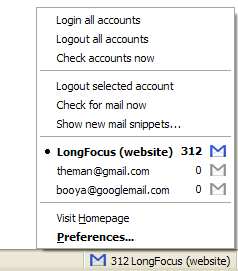
Gmail manager is firefox addon. It allows you to manage multiple Gmail accounts and receive new mail notifications. It displays all your account details (mail)


It diaplays unread messages, saved drafts, spam messages, labels with new mail, space used, and new mail snippets.


download iconMore Info and Download details

download iconInstall Firefox

Gmail notifer for firefox

Gmail Notifier For Firefox allows a you to checking for new Gmail messages form multiple Gmail accounts directly from firefox.You can monitor multiple Gmail accounts right inside your browser's UI . A status bar item will show once installed, and a toolbar item can be added by customizing the toolbar


download iconMore Info and Download details

download iconInstall Firefox

Gmail Drive

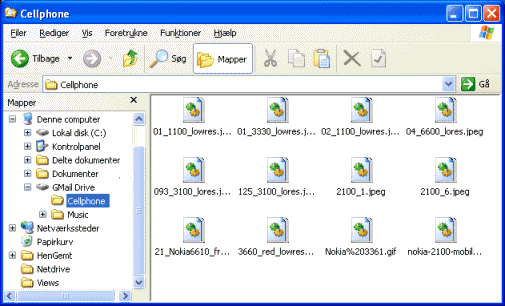
GMail Drive is basically a windows tool allows you to use Gmail as a storage medium. GMail Drive creates a virtual filesystem on top of your Google Gmail account and enables you to save and retrieve files stored on your Gmail account directly from inside Windows Explorer.

GMail Drive shell extension
GMail Drive literally adds a new drive to your computer under the My Computer folder, where you can create new folders, copy and drag'n'drop files to. With GMail Drive you can
easily copy files to your Gmail account and retrieve them again.


GMail Drive periodically checks your mail account (using the Gmail search function) to see if new files have arrived and to rebuild the directory structures. But basically GMail Drive acts as any other hard-drive installed on your computer. You can copy files to and from the GMail Drive folder just like any normal Explorer folders.

gExodus- import mails into Gmail

gExodus is a windows tool that allows you to import your emails into your Gmail account. It supports only mbox format used by Mozilla Mail/News, Mozilla Thunderbird, and many other
Unix email applications.
gExodus

gExodus lets you add a word to the subject of the forwarded mail (like "[import]") so it's easy to set up a Gmail filter to handle the old messages as you like. gExodus is a free download, Windows only.The only majaor problem with this is the messages that appear in Gmail aren't dated correctly.

download iconDownload gExodus

Gmail Loader

Google GMail Loader (GML) is tool to import existing emails .Gmail Loader lets you move your old emails to a Gmail account easily and in one swoop.

Messages forwarded by GML either go to Gmail's "Inbox" or to "Sent Mail". GML only supports two mBox formats (Netscape, Mozilla, Thunderbird, Most Other Clients), MailDir (Qmail, others), MMDF (Mutt), MH (NMH), and Babyl (Emacs RMAIL). Gmail Loader supports Windows, Linux, Mac OS X and others with Python and Python Mega Widgets.


GML usually requires you to export and convert your mail to an mbox format file or any other format mentioned above.

download iconDownload GML

Import/Export Your Gmail Contacts

You can import/export your Gmail Contact from/to other mail or outlook or your windows address book.


To export your Gmail address book:

  • Select Contacts .
  • Now click Export at the top.
  • Select "Outlook CSV (for import into Outlook clients)" since you can export it to any mail.
  • Click Export Contacts.
  • Download the "gmail-to-outlook.csv" file to your Desktop.

Now you need to import it into your mail.

  • go to your mail
  • Visit either address book/contact(incase of Gmail)
  • Select import contact (next to export link in case of gmail)
  • Now upload "gmail-to-outlook.csv" or any other ".csv" file file.

If you export it in Gmail format the file is named "gmail.csv"

The Gmail format is in Unicode to preserve international characters, but some email programs like outlook do not support that. Outlook CSV converts names to your default character encoding.

You can import from most mail/address book both online and offline

Importing from Mozilla and Netscape requires something extra. They do not add the column headings you need to add it manually as Gmail needs them.

Open the exported CSV file in a spread sheets program and add them. In this Add the following correspondly as the top line "First Name,Last Name,Name,,Email Address,........".
Replace ..... by other details that is present .

Fwd a Conversation

Most of us know how to fwd a mail . What if you want to fwd an entire thread of emails i.e conversation ? You forward them... one by.. one? No there is a easier way.

Gmail, you forward the entire conversation it in one compact message. Quoted text will be removed automatically.

To forward an entire conversation Gmail:

  • Open the desired conversation.
  • Click the Forward All link in the right column.
  • Add the address and extra text if you wish to , to the message.
  • Click Send.

Now the receiver will receive it as one big mail containing all the conversation.