Showing posts with label Mozilla Thunderbird. Show all posts

Sunday, August 19, 2007

Moving contacts--Thunderbird to Gmail

To import contact from Thunderbird first save the contacts in your computers then import it to Gmail.

Saving Contacts

  • Go to thunderbird
  • Select Window
  • Click on Address Book from the menu.
  • Select the Personal Address Book or any other address book in the Address Books list.
  • Select Tools
  • Click on Export from the menu.
  • Select Comma Separated (*.csv) Format
  • Choose a file name and save it.

Mozilla do not add the column headings that is needed by Gmail .TO add it

  • Open the exported .CSV file in a spreadsheets program like EXCEL
  • Add the following correspondly as the top line "First Name,Last Name,Name,Email Address" and other details that is present .
Importing

  • Go to Gmail
  • Go to Contact
  • Select import contact (next to export link )
  • Now upload ".csv" file that you downloaded.


To import contacts from other Click here

To export contacts Click here

Expoting contacts to thunderbird

Expoting Gmail contacts to Mozilla has to be done in/through .csv format. To export contacts first save your gmail addressbook on your comp then import it to thunderbird


To export your Gmail address book:

  • Select Contacts .
  • Now click Export at the top.
  • Select "Outlook CSV (for import into Outlook clients)"
  • Click Export Contacts.
  • Save "Gmail-to-outlook.csv" file .

Now you need to import it into Thunderbird.

  • Go to Thunderbird

  • Select Tools

  • Click Import

  • Select Address Books as the imprting option.
  • Click Next

  • Select Text file (LDIF,.tab,.csv,.txt)

  • Click Next .

  • Select the "gmail-to-outlook.csv" file you just created.

  • Make sure First record contains field names is checked.

  • Use the Move Up and Move Down buttons to match Mozilla Thunderbird address book fields on the left with Gmail fields on the right.
  • Click OK.

  • Finally click Finish.


To export contacts to otherClick here

To import contactsClick here

Outlook to Gmail-impoting mails

Impoting mails from Outlook to Gmail is probably the most toughest.The reason you cannot direcly impot it. First you need to import it into thunderbird.Then make use of Gmail loader to import it to Gmail. Unless i's really important i dont advice you to do it. This method is aplicable to Microsoft's any Offline mail reader like outlook or outlook express .This works for all new versions of Outlook and any version previous that thunderbird suppors.

Imprting from Outlook to thunderbird


  • Open Thunderbird

  • Select Tools and then select Import 'Select

  • Select Mail

  • Click Next.

  • Highlight Outlook Express.

  • Click Next

  • Finally click Finish.

Now make use of Gmail Loader to import it into Gmail

  • Launch Gmail Loader.
  • Click Configure Your Email File.
  • Select find
  • Locate the Mozilla Thunderbird folder you want to import into Gmail.
  • Click Open.
  • Select "mBox (Netscape, Mozilla, Thunderbird)" under File Type in Gmail Loader.
  • Now select one of the options under message type "Goes to Sent Mail" OR "Goes to Inbox".
  • Type your complete Gmail address in the Address.
  • Finally Click Send to GMail.


download iconGmail Loader(details & download)

download iconMozilla Thunderbird

To import mails from other mails click here

Impoting mails from firefox/Thunderbird

Impoting mails from thunderbird/firefox is not so easy.You need to have tool called
Gmail Loader.

To import mail

  • Launch Gmail Loader.
  • Click Configure Your Email File.
  • Select find
  • Locate the Mozilla Thunderbird folder you want to import into Gmail.
  • Click Open.
  • Select "mBox (Netscape, Mozilla, Thunderbird)" under File Type in Gmail Loader.
  • Now select one of the options under message type "Goes to Sent Mail" OR "Goes to Inbox".
  • Type your complete Gmail address in the Address.
  • Finally Click Send to GMail.


To import mails from other mails click here

Saturday, August 11, 2007

Gmail in Thunderbird

If you want to acess your Gmail in Thunderbird then read along.
To do this

  • Go to Gmail
  • Click on settings
  • Visit Forwarding and POP Tab and enable POP feature
  • Select 'Save changes'
  • Open Thunderbird.
  • Select 'Account Settings' from the 'Tools' menu.
  • Select 'Email account,' and click 'Next.'
  • Enter your details and click 'Next.'
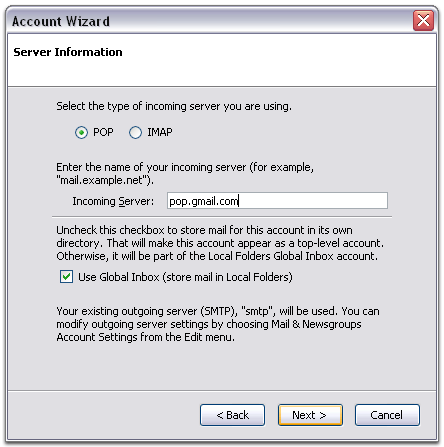
  • Select 'POP' as the type of incoming server you are using. Enter 'pop.gmail.com' in the 'Incoming Server:' field, and click 'Next.'


  • Enter your Gmail username (including '@gmail.com') in the 'User Name:' field, and click 'Next.'
  • Enter a name for your email account in the 'Account Name:' field, and click 'Next.'
  • Verify your account information in the dialogue box, and click 'Finish.'
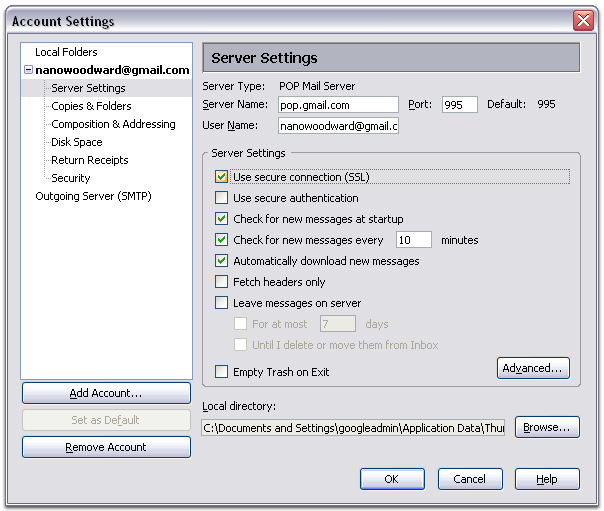
  • Select 'Server Settings' listed beneath your new account.
  • Check the box next to 'Use secure connection (SSL),' and ensure that '995' appears in the 'Port:' field.


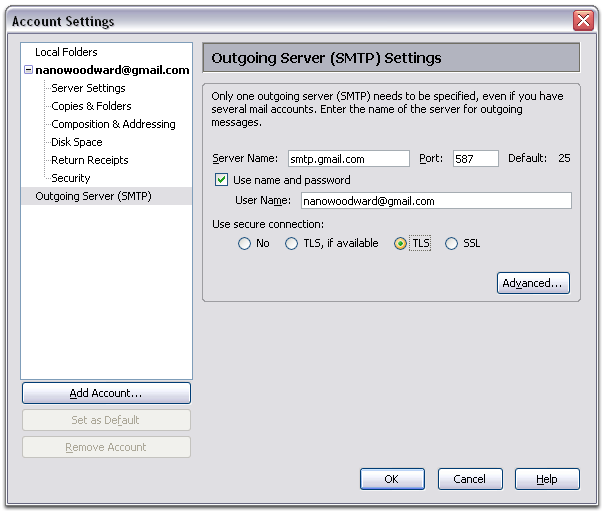
  • Select 'Outgoing Server (SMTP)' listed beneath your new account.
  • Enter 'smtp.gmail.com' in the 'Server Name:' field under 'Outgoing Server (SMTP) Settings,' and enter '587' in the 'Port:' field.


  • Check the box next to 'Use name and password,' and enter your Gmail username (including '@gmail.com') in the 'User Name:' field.
  • Select 'TLS' under 'Use secure connection,' and click 'OK.'
  • Verify that the information listed under 'Congratulations!' is correct, and click 'Finish.'


  • To read mails in other clientclick here